How to add an echo effect to a video on iPhone
Import the clip into Videcho, open Audio FX and go to the Spatial card. Tap Slapback for one quick echo or Dub for long repeats, or set Echo Mix and Echo Delay yourself. Keyframes put the echo on one word or one line. Then export.
Videcho is on the App Store for iPhone and iPad. The guide names every button as the app shows it.
You need Videcho on an iPhone or iPad with iOS 26 or later, and a video in your photo library or in Files. The video needs a sound track.
-
Import the video
Open Videcho and tap Choose from Library. Pick Photo Library or Files, then choose the clip. Once a clip is open, the + button at the top left of the Preview tab loads a different one.
-
Open the Spatial card
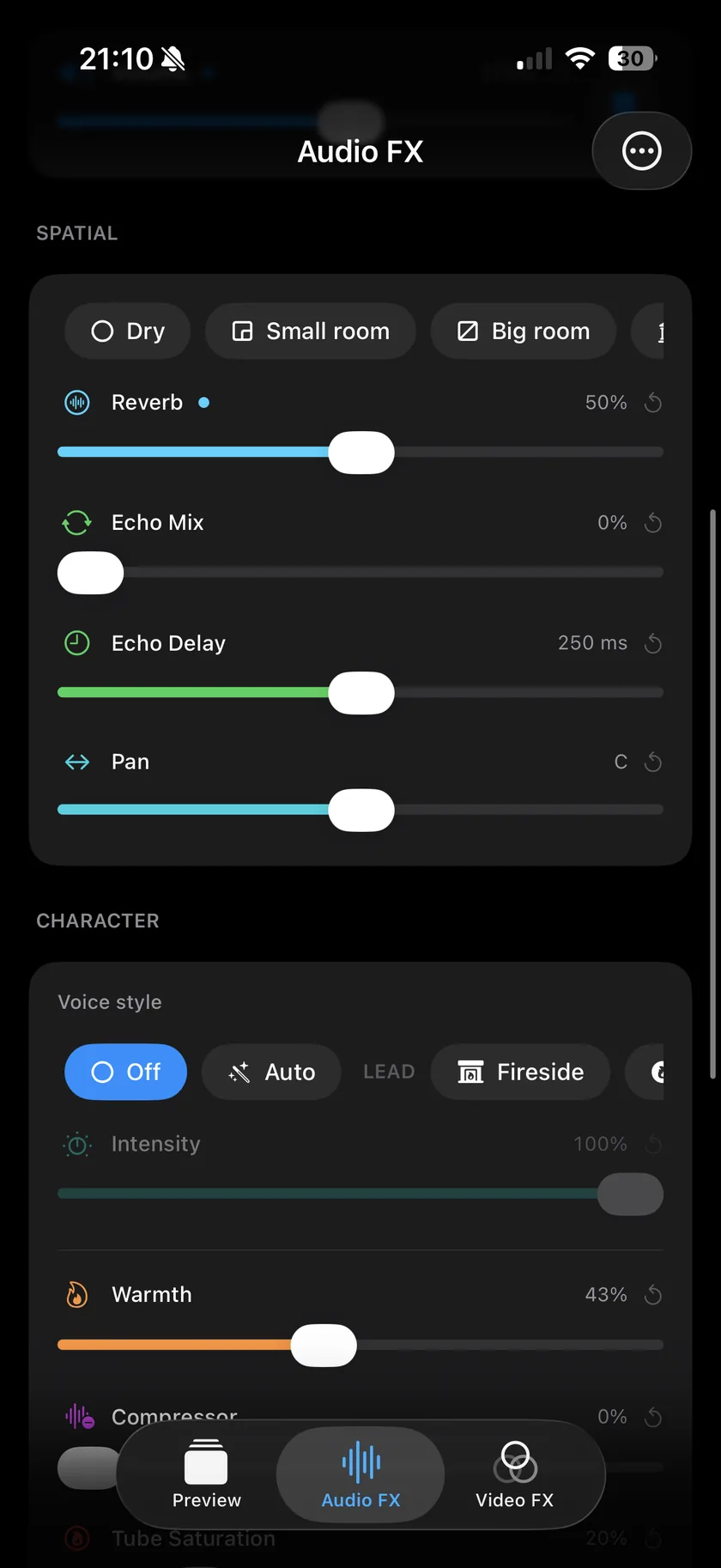
Tap Audio FX in the bar at the bottom and scroll to Spatial. It holds the presets, Reverb, Echo Mix, Echo Delay and Pan.
-
Pick an echo preset
The row of presets scrolls sideways. Slapback is one quick echo right behind the sound, 110 ms later, with no reverb: the 50s rock sound. Dub is a long echo that repeats several times, with some hall. Ambient is a lot of hall with a soft echo. Dry turns echo and reverb off.
-
Set how loud and how many
Echo Mix sets how loud the repeats are, from 0% to 100%. It also sets how many you hear: the higher the mix, the more of each repeat comes back. At 0% there is no echo.
-
Set the time between repeats
Echo Delay goes from 0 to 500 ms, and its reset button sets 250 ms. Around 100 ms is a tight slapback, and 300 ms or more gives clear, separate repeats. Pull Reverb to 0% if you want the echo without a room around it.
-
Put the echo on one word
Play to just before the word, tap the diamond button next to the waveform and raise Echo Mix. Play to just after the word, add a second keyframe and set Echo Mix back to 0%. Tap a marker to set its fade, from 0.3 to 8 seconds; a short fade keeps the echo on the word.
-
Listen and compare
Tap play. The echo is live while the clip plays. On the Preview tab, the power button next to Export switches all effects off, so you hear the original, and on again.
-
Export
On the Preview tab, tap the Export button, the arrow out of a box at the top right. Videcho renders a new video at the size and frame rate of your clip, up to 4K at 60 fps, and opens the share sheet. Save the video to Photos or Files, AirDrop it or send it on. The original clip stays as it was.
-
What is the difference between echo and reverb?
Echo is a clear repeat of the sound after a delay that you can count. Reverb is a dense wash of reflections that puts the sound in a room. Videcho has both, with separate sliders, and the reverb guide covers the room.
-
How do I get an echo on the last word of a line?
With two keyframes: one just before the word with Echo Mix up, one just after it with Echo Mix at 0%. See the step "Put the echo on one word" above.
-
Can the echo be longer than half a second?
No. Echo Delay ends at 500 ms. For a longer tail, raise Echo Mix so more repeats come back.
-
Can I add echo to an audio file?
Not in Videcho. It works on videos: it does not import a separate audio file and it does not export audio only.
-
Does the echo change my original video?
No. Videcho writes a new video and leaves the original where it is.
Videcho adds echo, reverb, EQ and volume to the sound of a video on iPhone and iPad, and keyframes put them where you want them. It has no subscription and no account.
- How to add reverb to a video on iPhoneGuide
- How to improve the sound of a cover or music video on iPhoneGuide
- How to make a slowed + reverb video on iPhoneGuide
- Videcho vs VideoVerbCompare
Written for Videcho 2.1.0. Button names are the ones the app shows.