How to make a slowed + reverb video on iPhone
Import the clip into Videcho, open Audio FX, scroll to the Speed section and tap Slowed + Reverb. Videcho plays the clip at 0.80x with a large hall on top. The pitch drops with the speed, like a record played slower, and the picture slows with the sound. Sped up does the opposite at 1.25x.
Videcho is on the App Store for iPhone and iPad. The guide names every button as the app shows it.
You need Videcho on an iPhone or iPad with iOS 26 or later, and a video in your photo library or in Files. The video needs a sound track.
-
Import the video
Open Videcho and tap Choose from Library. Pick Photo Library or Files, then choose the clip. Once a clip is open, the + button at the top left of the Preview tab loads a different one.
-
Open the Speed section
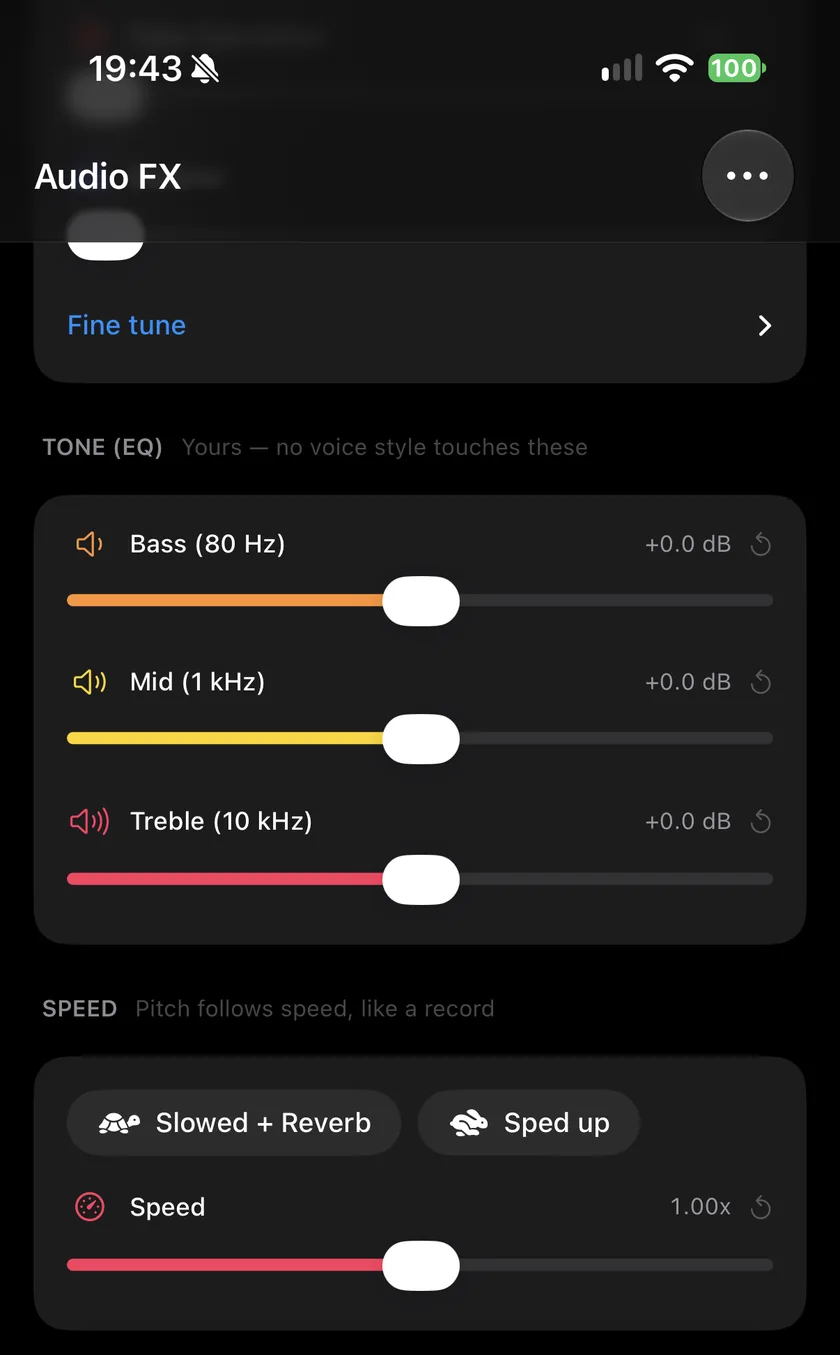
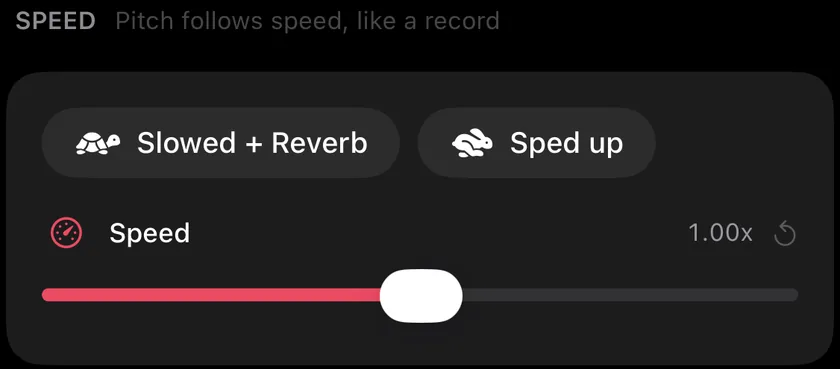
Tap Audio FX and scroll to the bottom. Speed is the last section. It says that the pitch follows the speed, like a record.
-
Tap Slowed + Reverb
Slowed + Reverb sets the speed to 0.80x and the reverb to Large hall. The button stays selected while both are in place, and a second tap takes both out again.
-
Or tap Sped up
Sped up sets the speed to 1.25x and changes nothing else. The pitch rises with the speed. A second tap sets the speed back to 1.00x.
-
Set any speed
Drag the Speed slider anywhere from 0.50x to 1.50x. It snaps to 1.00x, and the value reads like "0.80x". There is no option to keep the pitch: the sound slows down the way a record does.
-
Change the reverb or the tone
A chip only sets values. Afterwards you can move Reverb, add echo or open Tone (EQ) as usual. The reverb guide covers the controls.
-
Export
Tap the Export button on the Preview tab. The picture is retimed with the sound, so they stay in sync, and the new video is as long as the original divided by the speed.
-
What is slowed + reverb?
A song or clip played slower, so its pitch drops like a record at a lower speed, with a big reverb on it. Sped up is the opposite: faster and higher.
-
Can I slow down the sound without changing the pitch?
Not in Videcho. The pitch always follows the speed.
-
Does the picture slow down too?
Yes. Videcho retimes the picture with the sound, so a slowed clip is longer and stays in sync.
-
Can I slow down only part of the clip?
Yes. Speed takes keyframes like the other sliders. Play to the point where the slow part should begin, tap the diamond button next to the waveform and move Speed or tap a chip. The new speed applies from that keyframe on.
-
Do keyframes still work at another speed?
Yes. Keyframes stay where they were set in the original clip, so an effect lands on the same moment of the clip at any speed.
-
Can I use a song from my music library?
Videcho works on videos. Import a video that carries the song, or a video you made with it.
Videcho makes a slowed + reverb or sped up video on iPhone and iPad in one tap, and adds reverb, echo and EQ to its sound. It has no subscription and no account.
- How to add reverb to a video on iPhoneGuide
- How to make a video louder on iPhoneGuide
- How to improve the sound of a cover or music video on iPhoneGuide
- Videcho vs VideoVerbCompare
Written for Videcho 2.1.0. Button names are the ones the app shows.