How to improve the sound of a cover or music video on iPhone
A video recorded on a phone often sounds thin and dry. In Videcho, open Audio FX and work down the screen: pick a voice style such as Fireside or Velvet, add a little reverb, adjust Bass, Mid and Treble, then change the settings between verse and chorus with keyframes. Export when it sounds right.
Videcho is on the App Store for iPhone and iPad. The guide names every button as the app shows it.
You need Videcho on an iPhone or iPad with iOS 26 or later, and a video of your cover, practice take or music video in your photo library or in Files.
-
Import the video
Open Videcho and tap Choose from Library. Pick Photo Library or Files, then choose the clip. Once a clip is open, the + button at the top left of the Preview tab loads a different one.
-
Pick a voice style
In the Character card, tap a style in the Voice style row. Fireside is made for a quiet song with a guitar. Ember, Velvet and Hush are for a quiet or breathy voice. Modern Pop, Rap, Spoken, Wide and Vintage are further starting points, and the BACKING group holds Double, Harmony and Ad-lib. Auto measures your clip and picks settings for it. Intensity sets how much of the style you hear.
-
Add a little reverb
In Spatial, pick Small room and keep Reverb low. A dry phone recording gains from a hint of space, and too much washes out the words. The reverb guide has the details.
-
Shape the tone
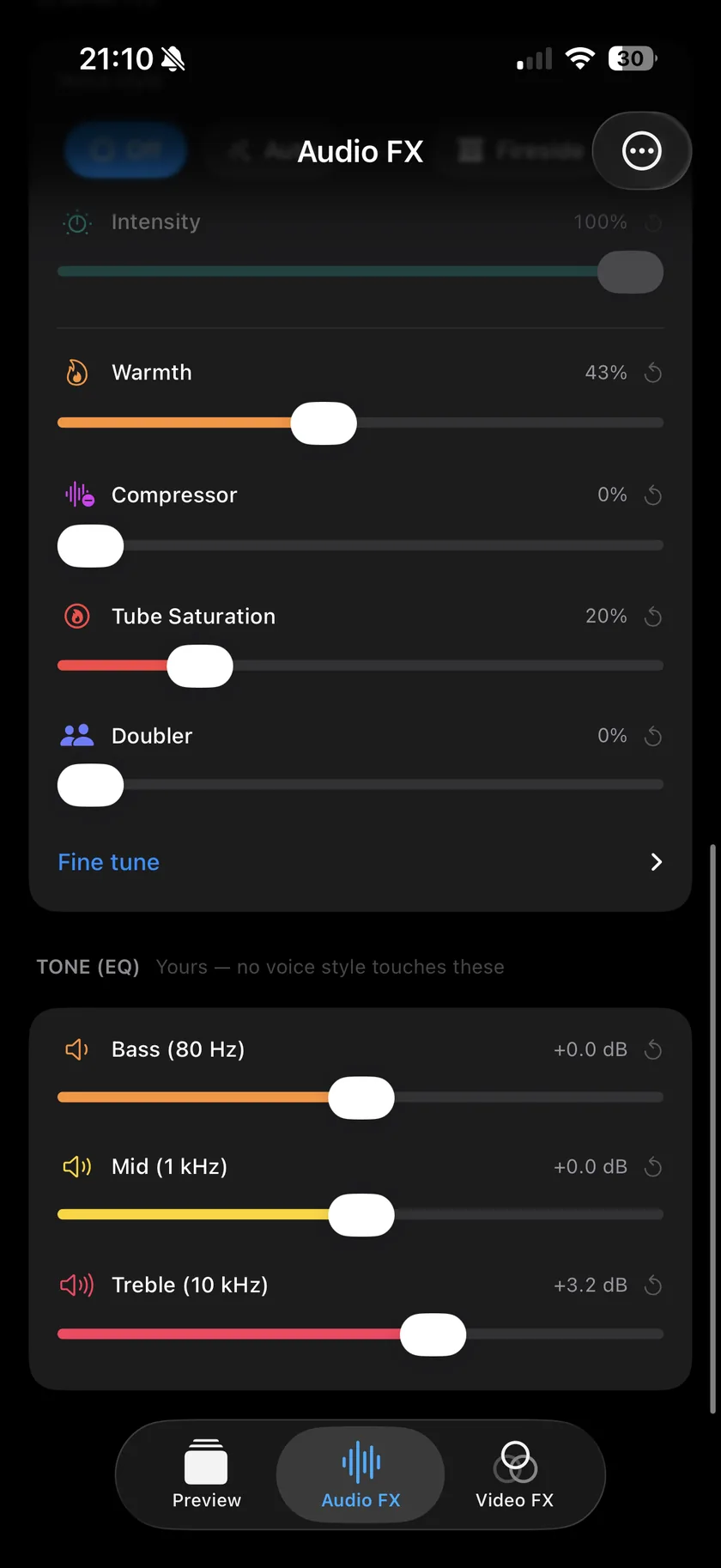
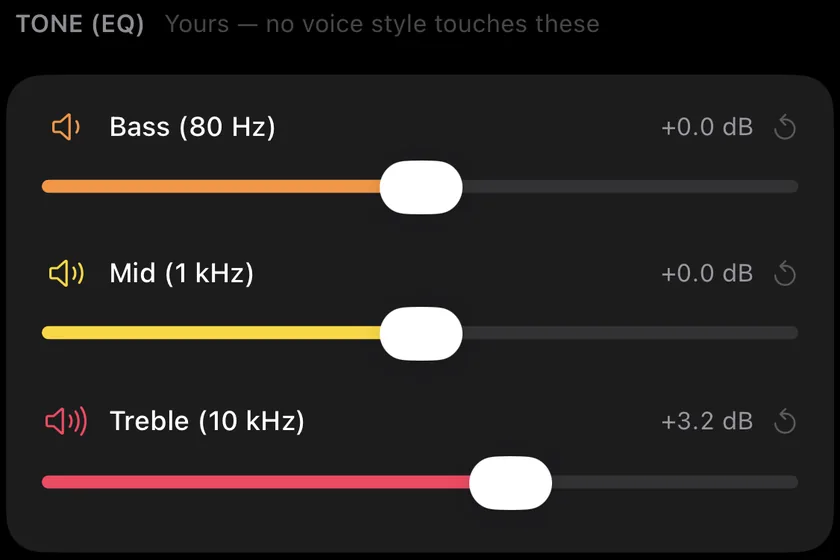
Tone (EQ) has three bands: Bass (80 Hz), Mid (1 kHz) and Treble (10 kHz), each from -12 dB to +12 dB. Lower Bass a little if the clip sounds boomy. Raise Treble if it sounds dull. A voice style does not touch these three sliders, so they stay yours.
-
Add warmth and control
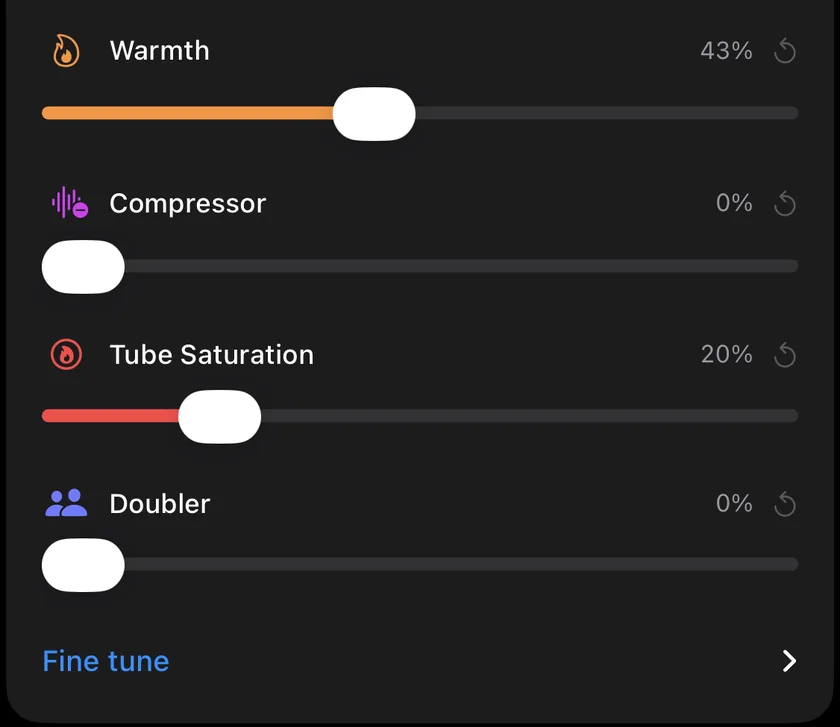
In Character, Warmth rounds the sound, Tube Saturation adds gentle overtones that make a thin voice sound fuller, Compressor evens out the level so soft words stay audible, and Doubler thickens the voice by doubling it. A voice style sets these four for you, and you can move them afterwards. Fine tune opens three more controls: Low Cut, De-Ess and Width.
-
Change the sound over the song
Play to the start of the chorus and tap the diamond button right of the waveform. A marker appears on the waveform. Raise Reverb or add a little echo. From that marker on, the clip uses the new values, and the verse before it keeps the old ones. A dot beside a slider shows what the current keyframe changes. Tap a marker to delete it or to set how long its fade lasts, from 0.3 to 8 seconds, or drag it to move it.

-
Compare with the original
On the Preview tab, the power button next to Export switches all effects off, so you hear the original, and on again. If the original sounds better in some part, lower the effect there or add a keyframe that sets it back.
-
Export
On the Preview tab, tap the Export button, the arrow out of a box at the top right. Videcho renders a new video at the size and frame rate of your clip, up to 4K at 60 fps, and opens the share sheet. Save the video to Photos or Files, AirDrop it or send it on. The original clip stays as it was.
-
Which setting makes the biggest difference on a phone recording?
For a voice or an acoustic instrument, a voice style or a little Compressor and Warmth, plus a small amount of reverb, usually does the most. Start there and use EQ for what is left.
-
Does Videcho fix a noisy or distorted recording?
No. Videcho has no noise reduction and cannot repair clipping. It shapes level, tone and space.
-
Can the reverb be different in the verse and the chorus?
Yes. Add a keyframe at the start of the chorus and change the sliders there. See the step "Change the sound over the song" above.
-
Can I record a new take in Videcho?
No. Videcho works on a video you already have. For layered recording with several takes, the same developer makes Musaic.
-
Does it change the picture?
Not on the Audio FX tab. The Video FX tab has colour looks and blur, and both are optional. The look guide shows them.
Videcho adds reverb, echo, EQ, warmth, a compressor and voice styles to the sound of a cover or music video, and keyframes change them over the song. It has no subscription and no account.
- How to add reverb to a video on iPhoneGuide
- How to make a video louder on iPhoneGuide
- How to put a VHS or vintage look on a video on iPhoneGuide
- Videcho vs VideoVerbCompare
Written for Videcho 1.1.0. Button names are the ones the app shows.