How to flip, mirror or rotate a video on iPhone
The Photos app can rotate a video too, in its Edit screen. Use Videcho when you also want to mirror a selfie video, turn it upside down, or fix the sound in the same export. Import the clip, open Video FX, and tap Flip H to mirror it, Flip V to turn it upside down or Rotate for a quarter turn.
Videcho is on the App Store for iPhone and iPad. The guide names every button as the app shows it.
You need Videcho on an iPhone or iPad with iOS 26 or later, and a video in your photo library or in Files. The video needs a sound track.
-
Import the video
Open Videcho and tap Choose from Library. Pick Video from Library or Video from Files, then choose the clip. Once a clip is open, the + button at the top left of the Preview tab loads a different one.
-
Open Video FX
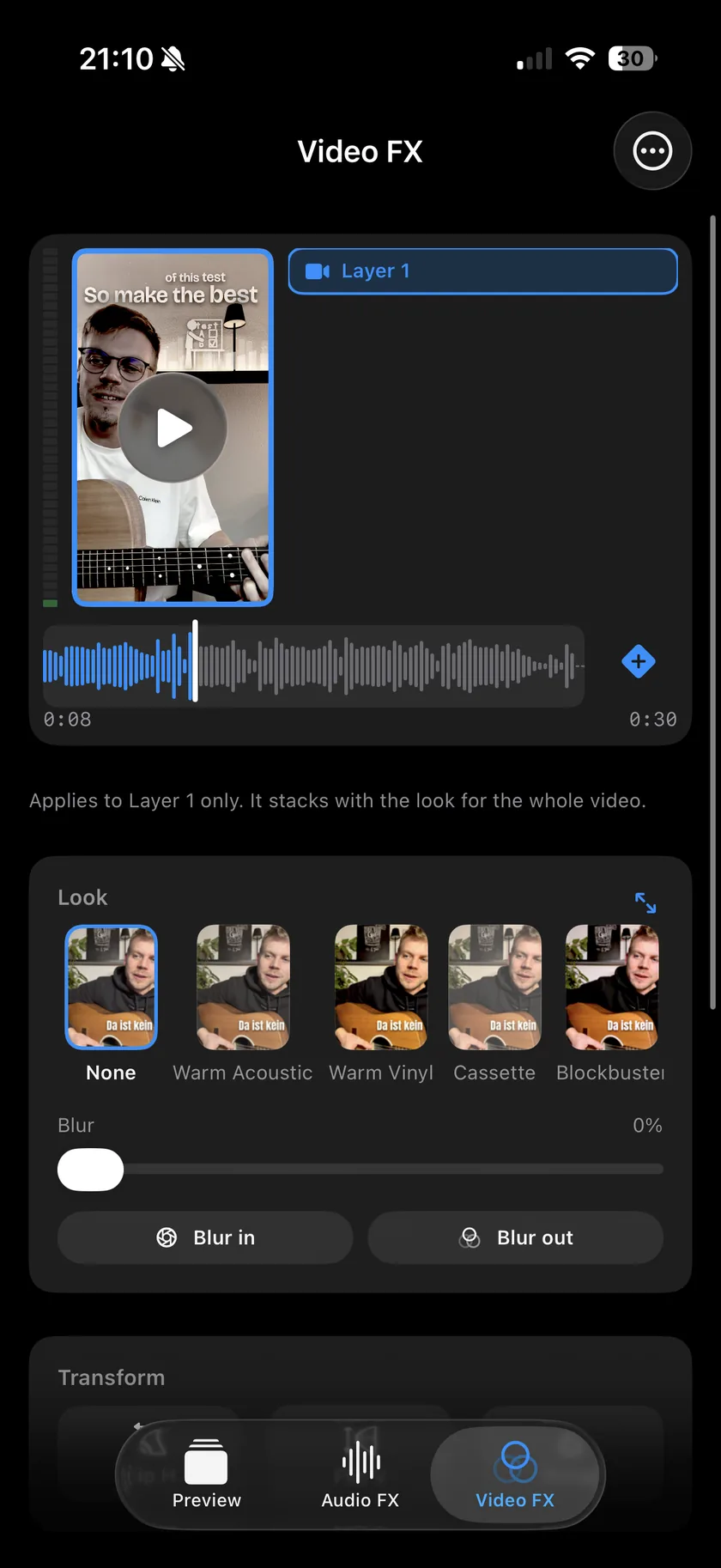
Tap Video FX in the bar at the bottom. Scroll below the Look card to the Transform card. It has three buttons: Flip H, Flip V and Rotate.
-
Mirror the video
Tap Flip H to flip the picture left to right, the way a mirror shows it. This is the fix for a selfie video where the writing or the guitar neck is the wrong way round. The preview updates at once, and the button stays lit while the flip is on. Tap it again to flip back.
-
Turn it upside down
Tap Flip V to flip the picture top to bottom. Tap it again to turn it back.
-
Rotate the video
Tap Rotate to turn the picture a quarter turn. The button then shows the angle, such as 90°. Each tap adds another quarter turn, and after 270° the next tap sets it back to the original. A video shot sideways ends up upright after one or two taps. Rotating a landscape clip by a quarter turn makes a tall picture.
-
Combine them
The three buttons work together: a clip can be rotated and mirrored at once. They change only the picture, so the sound stays as it was.
-
Fix the sound in the same export
Open Audio FX to add reverb, raise Volume or shape the tone, and Mastering to set the level. The guide to a louder video and the guide to improving the sound show how. One export carries the picture and the sound together.
-
Export
On the Preview tab, tap the Export button, the arrow out of a box at the top right. Videcho renders a new video with the flip or the rotation in the picture, at the size and frame rate of your clip, up to 4K at 60 fps. The original clip stays as it was.
-
Can the Photos app rotate a video?
Yes. Photos rotates a video in its Edit screen, and that is the quickest way if rotating is all you need. Videcho is for the cases where you also want to mirror the picture, flip it upside down, or fix the sound in the same export.
-
How do I mirror a selfie video?
Open the clip in Videcho, go to Video FX and tap Flip H. Export, and the saved video is the mirrored picture.
-
What is the difference between Flip H and Flip V?
Flip H flips the picture left to right, like a mirror. Flip V flips it top to bottom, so the picture is upside down.
-
Can I rotate by an exact angle?
No. Rotate turns the picture in quarter turns: 90°, 180° and 270°.
-
Does flipping change the sound?
No. Flip H, Flip V and Rotate change only the picture. The sound has its own tab, Audio FX.
-
Does Videcho change my original video?
No. Videcho writes a new video and leaves the original where it is.
Videcho flips, mirrors or rotates a video on iPhone and iPad, and adds reverb, echo and EQ to its sound in the same export. It has no subscription and no account.
- How to put a VHS filter on a video on iPhoneGuide
- How to improve the sound of a cover or music video on iPhoneGuide
- How to increase the volume of a video on iPhoneGuide
- Videcho vs VideoVerbCompare
Written for Videcho 2.3.0. Button names are the ones the app shows.