How to make a video louder on iPhone
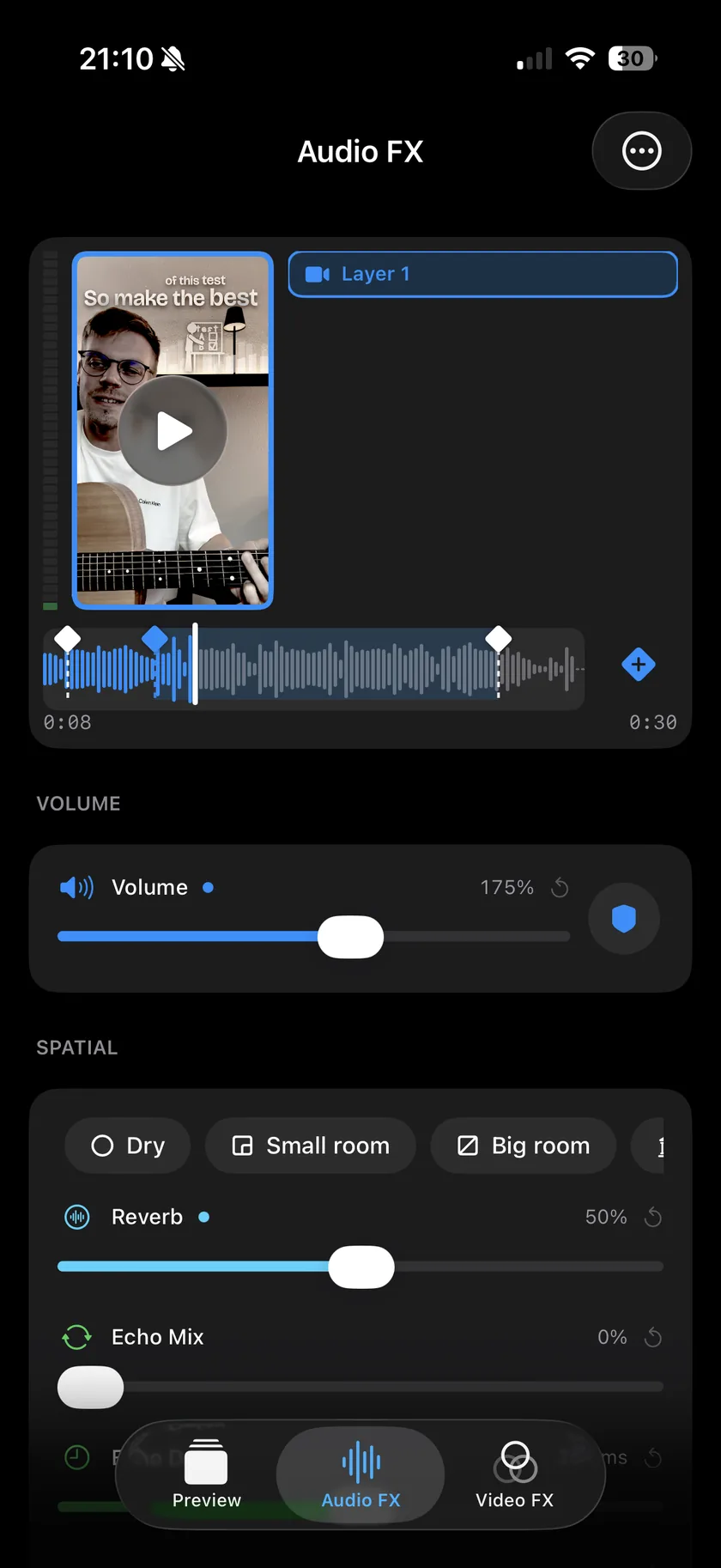
Import the clip into Videcho, open the Audio FX tab and drag Volume to the right. The slider goes up to 300%, three times the original level. Switch on the limiter with the shield button so loud peaks do not distort, then export.
Videcho is on the App Store for iPhone and iPad. The guide names every button as the app shows it.
You need Videcho on an iPhone or iPad with iOS 26 or later, and a video in your photo library or in Files. The video needs a sound track.
-
Import the video
Open Videcho and tap Choose from Library. Pick Photo Library or Files, then choose the clip. Once a clip is open, the + button at the top left of the Preview tab loads a different one.
-
Raise the volume
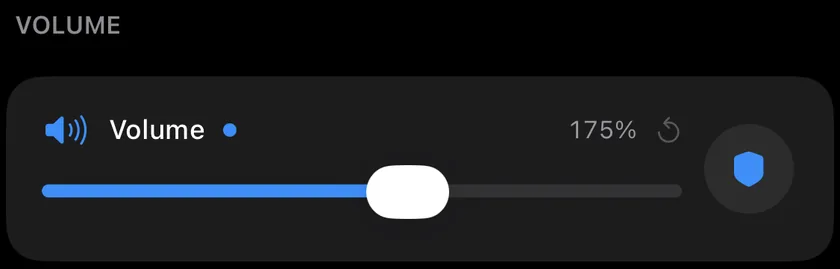
On Audio FX, drag Volume to the right. 100% is the original level and the slider ends at 300%. The circular arrow sets it back to 100%.
-
Switch on the limiter
Tap the shield button to the right of the slider and switch on Prevent clipping. A limiter then tames the loud peaks, so a louder clip does not distort. Switch it on before you push Volume far.
-
Listen to the loudest part
Play the loudest part of the clip. If it turns harsh or crackly, pull Volume back a little. A boost raises the noise of a quiet recording along with the voice, so a hiss or a hum gets louder too. Videcho has no noise reduction.
-
Even out quiet and loud parts
If only some words are too quiet, raise Compressor in the Character card. It narrows the gap between quiet and loud, so the quiet parts come up while the loud ones stay where they are.
-
Boost only one part
Play to the point where the quiet part begins, tap the diamond button next to the waveform and raise Volume. Add a second keyframe where the part ends and set Volume back. The level changes with a short fade at each keyframe. Skip this step if the whole clip is quiet.
-
Export
On the Preview tab, tap the Export button, the arrow out of a box at the top right. Videcho renders a new video at the size and frame rate of your clip, up to 4K at 60 fps, and opens the share sheet. Save the video to Photos or Files, AirDrop it or send it on. The original clip stays as it was.
-
How loud can Videcho make a video?
The Volume slider goes up to 300%, three times the original level. With Prevent clipping on, a limiter keeps the loudest peaks from distorting. How much boost a clip can take depends on the recording: a quiet but clean clip can take a lot, and a clip that is already near full level cannot.
-
Why does my video sound distorted after I made it louder?
A peak that would go above the maximum level is cut flat, and that sounds like crackle. Switch on Prevent clipping, lower Volume, or both. The loudest part of the clip decides how far you can go.
-
Does Videcho remove background noise?
No. Videcho changes level, tone and space: volume, reverb, echo, EQ and character effects. It has no noise reduction, so a boost raises the noise together with everything else.
-
Can I make only one part of a video louder?
Yes. A keyframe stores the settings from its point on, so a keyframe with a higher Volume at the start of the part and one with the old Volume at its end does it. See the step "Boost only one part" above.
-
Does making a video louder lower the video quality?
No. Videcho exports at the size and frame rate of your clip, up to 4K at 60 fps.
Videcho raises the volume of a video up to 300% with a built-in limiter, and adds reverb, echo and EQ if you want them. It has no subscription and no account.
- How to add reverb to a video on iPhoneGuide
- How to improve the sound of a cover or music video on iPhoneGuide
- How to put a VHS or vintage look on a video on iPhoneGuide
- Videcho vs VideoVerbCompare
Written for Videcho 1.1.0. Button names are the ones the app shows.