How to put a VHS or vintage look on a video on iPhone
Import the clip into Videcho, open the Video FX tab and tap VHS in the Look row. The look pulls the colour channels apart, softens the picture, draws scan lines and lets the tape wobble while the video plays. Strength sets how much of it you get. Videcho has 17 looks, among them Cassette, Warm Vinyl and Y2K.
Videcho is on the App Store for iPhone and iPad. The guide names every button as the app shows it.
You need Videcho on an iPhone or iPad with iOS 26 or later, and a video in your photo library or in Files. The video needs a sound track.
-
Import the video
Open Videcho and tap Choose from Library. Pick Photo Library or Files, then choose the clip. Once a clip is open, the + button at the top left of the Preview tab loads a different one.
-
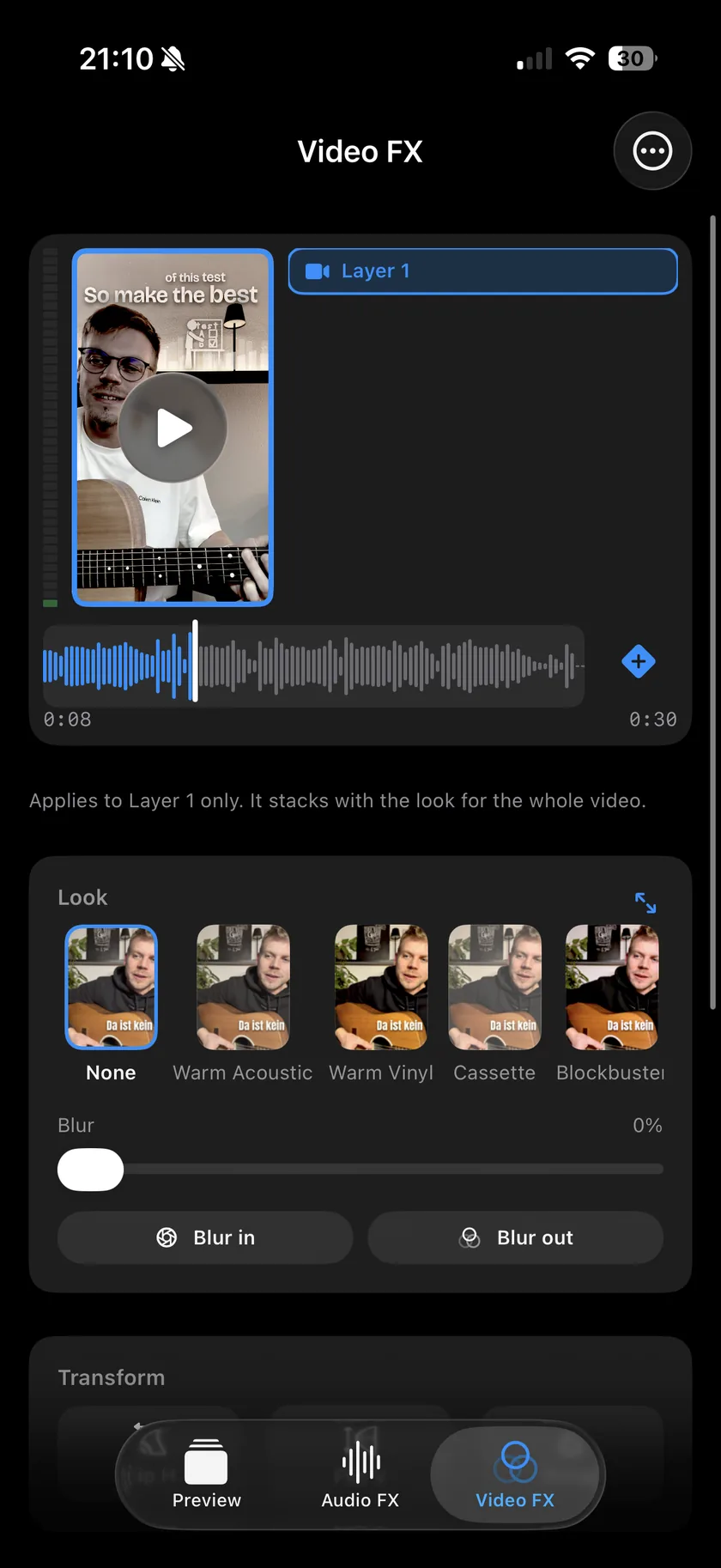
Open Video FX
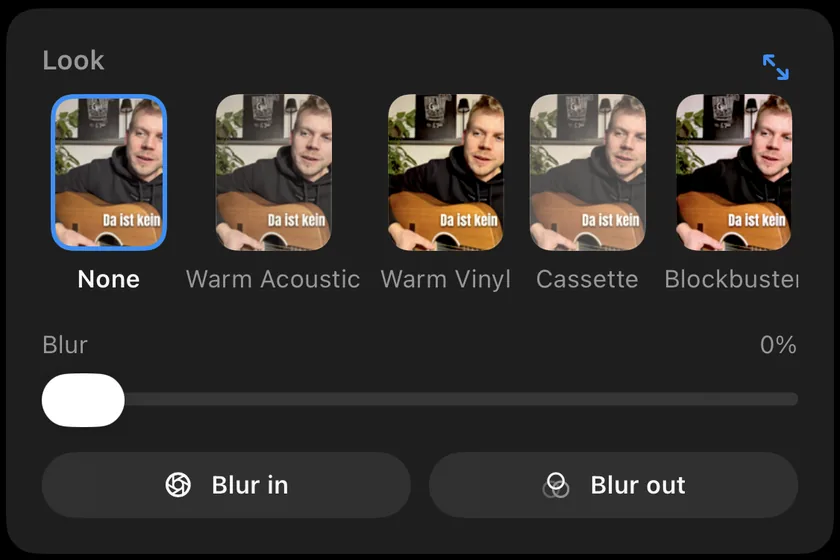
Tap Video FX in the bar at the bottom. The Look card holds a row of looks that scrolls sideways. Each chip shows your own clip with that look applied.
-
Pick VHS
Swipe the row to VHS, which sits after Y2K, and tap it. The preview updates at once. Press play to see the tape wobble and the scan lines move.
-
Set the strength
A Strength slider appears under the row once a look is on. 100% is the look as designed, and lower values blend it with the original picture.
-
Try other looks
Tap the arrows icon at the top right of the Look card to try the looks full screen and swipe through them. For a warm, old-record feel try Warm Vinyl or Cassette. Y2K is another retro choice, and Silver Fade, Studio Mono and Noir are black and white.
-
Add blur
Blur adds a soft blur on top of the look. Blur in starts the clip blurred and sharpens it over two seconds, and Blur out blurs the last two seconds.
-
Change the look during the clip
The waveform bar under the preview on Video FX has the same diamond button as Audio FX. Add a keyframe, pick another look or strength, and the look changes from there. Tap a marker and choose Glide into this keyframe for a gradual change instead of a jump.
-
Export
On the Preview tab, tap the Export button, the arrow out of a box at the top right. The look is part of the exported picture, and your original clip stays as it was.
-
Does the VHS look change the sound?
No. A look changes only the picture. The sound has its own tab, Audio FX, with reverb, echo, EQ, warmth and voice styles. Vintage is one of the voice styles.
-
Does VHS add a date stamp or a camcorder overlay?
No. VHS is a picture look: colour drift, a softer image, scan lines and a moving wobble. It adds no date stamp, no REC mark and no frame.
-
How many looks does Videcho have?
17, plus None: Warm Acoustic, Warm Vinyl, Cassette, Blockbuster, Soft Daylight, Cinema Cold, Bleach, Faded, Soft Focus, Silver Fade, Studio Mono, Noir, Y2K, VHS, Cel, Comic and Halftone.
-
Can I use a look on only part of the video?
Yes, with look keyframes. See the step "Change the look during the clip" above.
-
Can I use a look and add reverb in the same export?
Yes. A look is on the Video FX tab and the sound effects are on Audio FX. Videcho exports both together. The reverb guide covers the sound.
Videcho puts one of 17 colour looks, including VHS, on a video on iPhone and iPad, and adds reverb, echo and EQ to its sound. It has no subscription and no account.
- How to add reverb to a video on iPhoneGuide
- How to improve the sound of a cover or music video on iPhoneGuide
- How to make a video louder on iPhoneGuide
- Videcho vs VideoVerbCompare
Written for Videcho 1.1.0. Button names are the ones the app shows.