How to set the loudness of a video for TikTok, Instagram and YouTube on iPhone
Finish the sound in Videcho, then open the Mastering tab and pick Social for a social-media level of -10 LUFS, Loud for up to -7 LUFS or Natural to lift a quiet clip toward -14 LUFS. The tab measures the clip before and after, plays both, and Videcho applies the choice when you export.
Videcho is on the App Store for iPhone and iPad. The guide names every button as the app shows it.
You need Videcho on an iPhone or iPad with iOS 26 or later, and a video in your photo library or in Files. The video needs a sound track.
-
Import the video
Open Videcho and tap Choose from Library. Pick Photo Library or Files, then choose the clip. Once a clip is open, the + button at the top left of the Preview tab loads a different one. Set reverb, EQ and volume on Audio FX first: Mastering works on the finished sound.
-
Open the Mastering tab
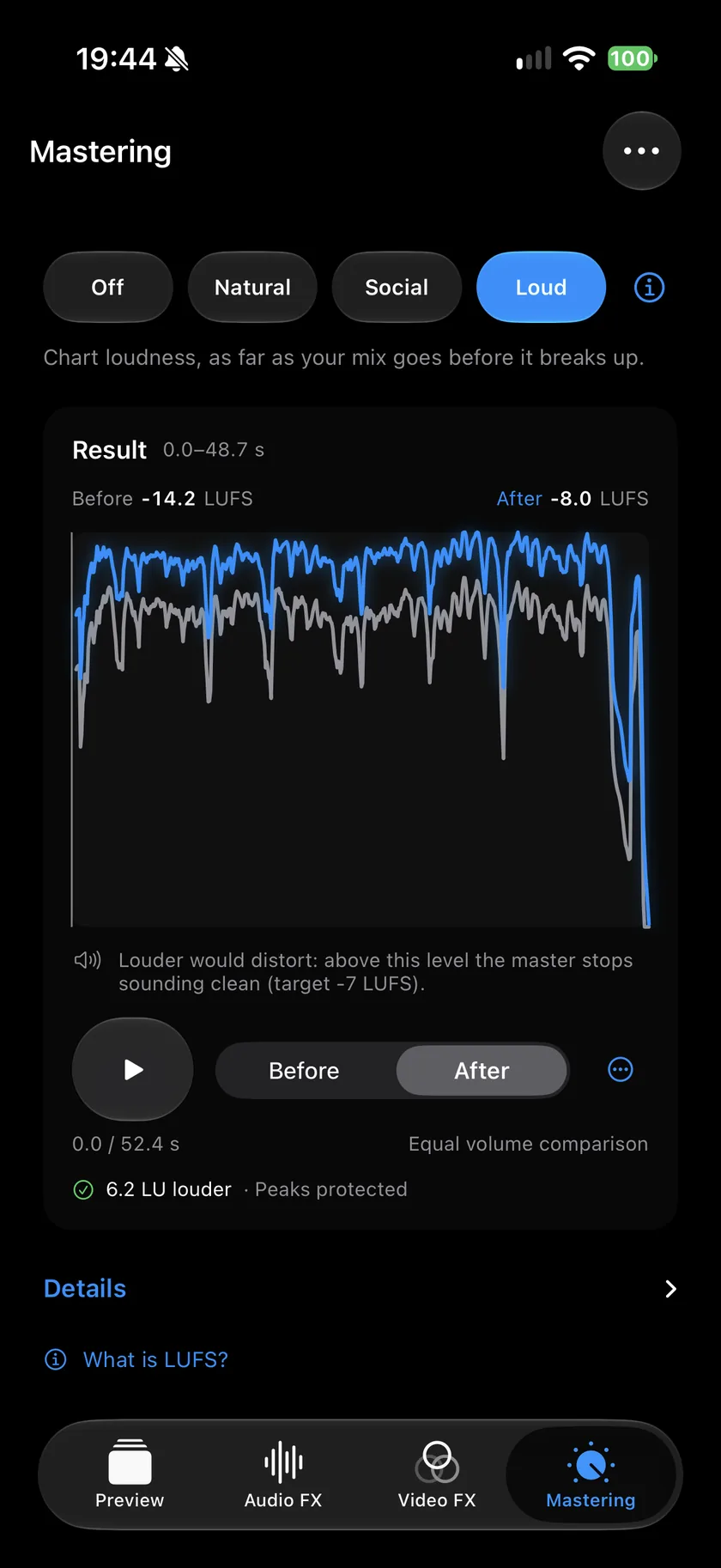
Tap Mastering, the last tab in the bar at the bottom. It shows four choices: Off, Natural, Social and Loud.
-
Pick a level
Natural lifts a quiet clip toward -14 LUFS and only protects the peaks; a clip that is already louder is not turned down. Social sets the clip to -10 LUFS, the level the app calls social-media level, and turns a louder clip down to it. Loud goes up to -7 LUFS. Off exports the sound as it is.
-
Read the result
The Result card shows the loudness Before and After in LUFS, a chart of both over the clip, and a line such as "6.2 LU louder · Peaks protected". If the clip cannot reach the target cleanly, a line says so: Videcho stops earlier where more would audibly distort.
-
Compare before and after
Tap play and switch between Before and After. By default both play at the same loudness ("Equal volume comparison"), so you hear what changes besides the level. The button with three dots switches Compare at equal volume off. The i button next to the choices lists what the chosen level does, step by step.
-
Export
On the Preview tab, tap the Export button, the arrow out of a box at the top right. Videcho renders a new video at the size and frame rate of your clip, up to 4K at 60 fps, and opens the share sheet. Save the video to Photos or Files, AirDrop it or send it on. The original clip stays as it was. The mastering is applied to the exported sound.
-
What is LUFS?
LUFS measures perceived loudness over time, rather than the highest peak. A less negative number is louder: -10 LUFS is louder than -14 LUFS. Videcho measures the whole clip.
-
Natural, Social or Loud: which one?
Social is made for posting: it brings quiet and loud clips to the same -10 LUFS. Loud is for a clip that should be as loud as it can get while it still sounds clean. Natural changes the least: it lifts a quiet clip toward -14 LUFS and leaves a louder one alone.
-
Does Mastering change the sound?
None of the three adds EQ or changes the tone. To reach their level, Social and Loud hold back the peaks, which brings loud and quiet parts a little closer together. Natural, Social and Loud keep the peaks below -1 dB; Off does not protect them.
-
What is the difference to the Volume slider?
Volume on Audio FX is plain gain up to 300%, and you judge the result by ear. Mastering measures the clip and aims at a loudness target. The guide to a louder video covers the slider.
-
Can I master only part of the video?
No. Mastering sets one level for the whole clip. For one quiet part, use a Volume keyframe on Audio FX.
Videcho masters the sound of a video on iPhone and iPad to a loudness you can read in LUFS, and adds reverb, echo and EQ. It has no subscription and no account.
- How to make a video louder on iPhoneGuide
- How to improve the sound of a cover or music video on iPhoneGuide
- How to EQ the sound of a video on iPhoneGuide
- Videcho vs VideoVerbCompare
Written for Videcho 2.1.0. Button names are the ones the app shows.