How to EQ the sound of a video on iPhone
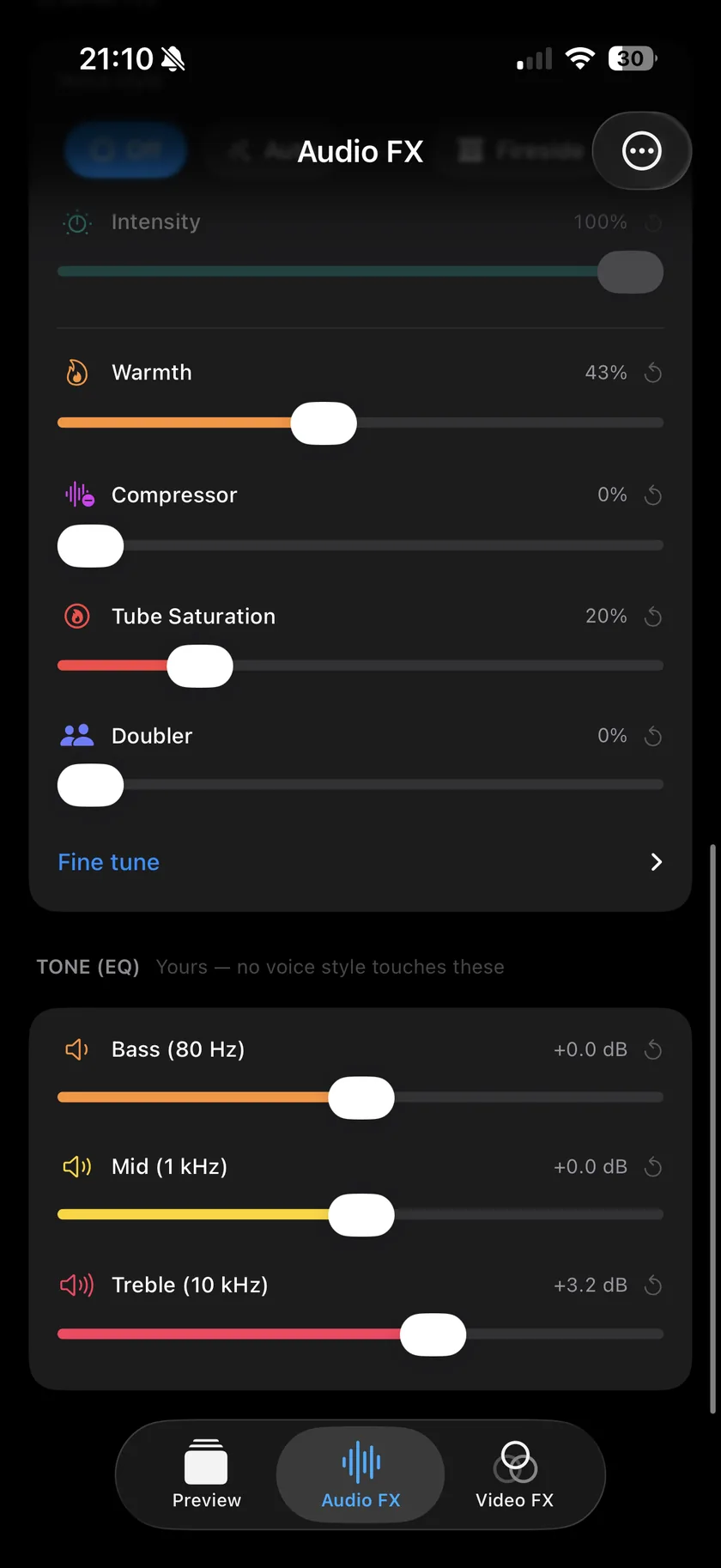
Import the clip into Videcho, open Audio FX and scroll to Tone (EQ). Move Bass (80 Hz), Mid (1 kHz) and Treble (10 kHz), each from -12 to +12 dB, listen while the clip plays, and export. Low Cut and De-Ess sit under Fine tune.
Videcho is on the App Store for iPhone and iPad. The guide names every button as the app shows it.
You need Videcho on an iPhone or iPad with iOS 26 or later, and a video in your photo library or in Files. The video needs a sound track.
-
Import the video
Open Videcho and tap Choose from Library. Pick Photo Library or Files, then choose the clip. Once a clip is open, the + button at the top left of the Preview tab loads a different one.
-
Open Tone (EQ)
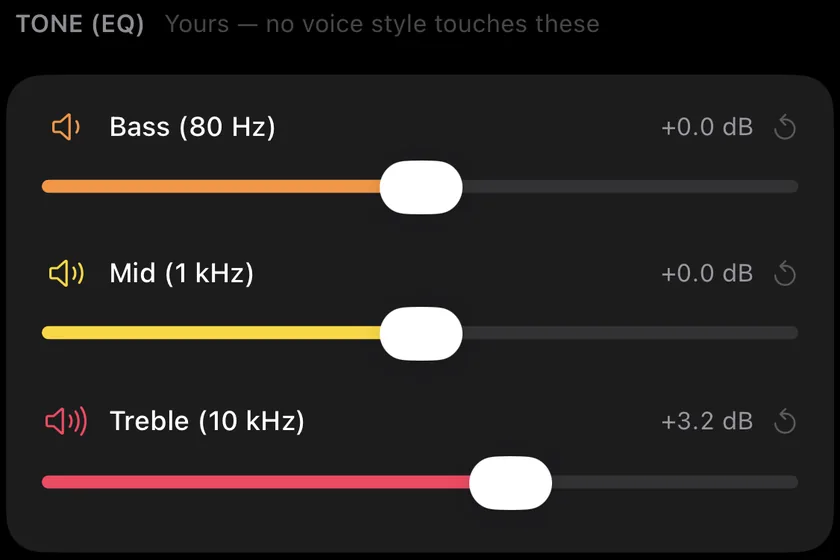
Tap Audio FX and scroll to Tone (EQ). Its three sliders are yours: a voice style never moves them.
-
Fix a boomy or a thin sound
Bass (80 Hz) sets the low end. Lower it a few dB if the clip booms or rumbles, raise it a little if a voice or a guitar sounds thin. The value reads like "+3.0 dB".
-
Fix a boxy or a hidden voice
Mid (1 kHz) sits where a voice and most instruments are. Lower it a little if the sound is boxy or nasal, raise it if the voice hides behind the guitar.
-
Fix a dull sound
Treble (10 kHz) adds or removes air. Raise it if the clip sounds muffled, lower it if it sounds sharp or harsh. Each circular arrow sets its slider back to 0 dB.
-
Cut rumble and sharp S sounds
In the Character card, open Fine tune. Low Cut removes everything below a frequency, from Off up to 160 Hz, against low rumble from wind or from handling the phone. De-Ess tames sharp S sounds in a voice.
-
Keep the boost clean
A bass or treble boost makes the clip louder. On the Volume card, tap the shield button and switch on Prevent clipping so the peaks do not distort.
-
Change the EQ over the song
The EQ sliders take keyframes like the others: play to the chorus, tap the diamond button next to the waveform and move the sliders. The guide to improving the sound shows the keyframe step.
-
Export
On the Preview tab, tap the Export button, the arrow out of a box at the top right. Videcho renders a new video at the size and frame rate of your clip, up to 4K at 60 fps, and opens the share sheet. Save the video to Photos or Files, AirDrop it or send it on. The original clip stays as it was.
-
How many bands does the equalizer have?
Three: Bass at 80 Hz, Mid at 1 kHz and Treble at 10 kHz, each from -12 to +12 dB. Low Cut and De-Ess under Fine tune add two more tools. There is no 10-band EQ.
-
Does a voice style change the EQ?
No. A voice style sets Warmth, Compressor, Tube Saturation, Doubler and the Fine tune values, and leaves the three EQ sliders where you put them.
-
How do I make the bass louder without distortion?
Raise Bass a few dB and switch on Prevent clipping on the Volume card. If the loud parts still crackle, lower Volume a little.
-
Can I see the EQ change while the video plays?
You hear it. The EQ is live while the clip plays, and the power button on the Preview tab switches all effects off to compare with the original.
Videcho puts a three-band EQ, reverb, echo and volume on the sound of a video on iPhone and iPad. It has no subscription and no account.
- How to improve the sound of a cover or music video on iPhoneGuide
- How to set the loudness of a video for TikTok, Instagram and YouTube on iPhoneGuide
- How to add reverb to a video on iPhoneGuide
- Videcho vs VideoVerbCompare
Written for Videcho 2.1.0. Button names are the ones the app shows.