How to bass boost a video on iPhone
To bass boost a video on iPhone, import it into Videcho, open Audio FX, scroll to Tone (EQ) and drag Bass (80 Hz) to the right, up to +12 dB. Switch on Prevent clipping so the extra low end does not distort, listen to the loudest part, then export. The picture stays as it is.
Videcho is on the App Store for iPhone and iPad. The guide names every button as the app shows it.
You need Videcho on an iPhone or iPad with iOS 26 or later, and a video in your photo library or in Files. The video needs a sound track.
-
Import the video
Open Videcho and tap Choose from Library. Pick Video from Library or Video from Files, then choose the clip. Once a clip is open, the + button at the top left of the Preview tab loads a different one.
-
Open Tone (EQ)
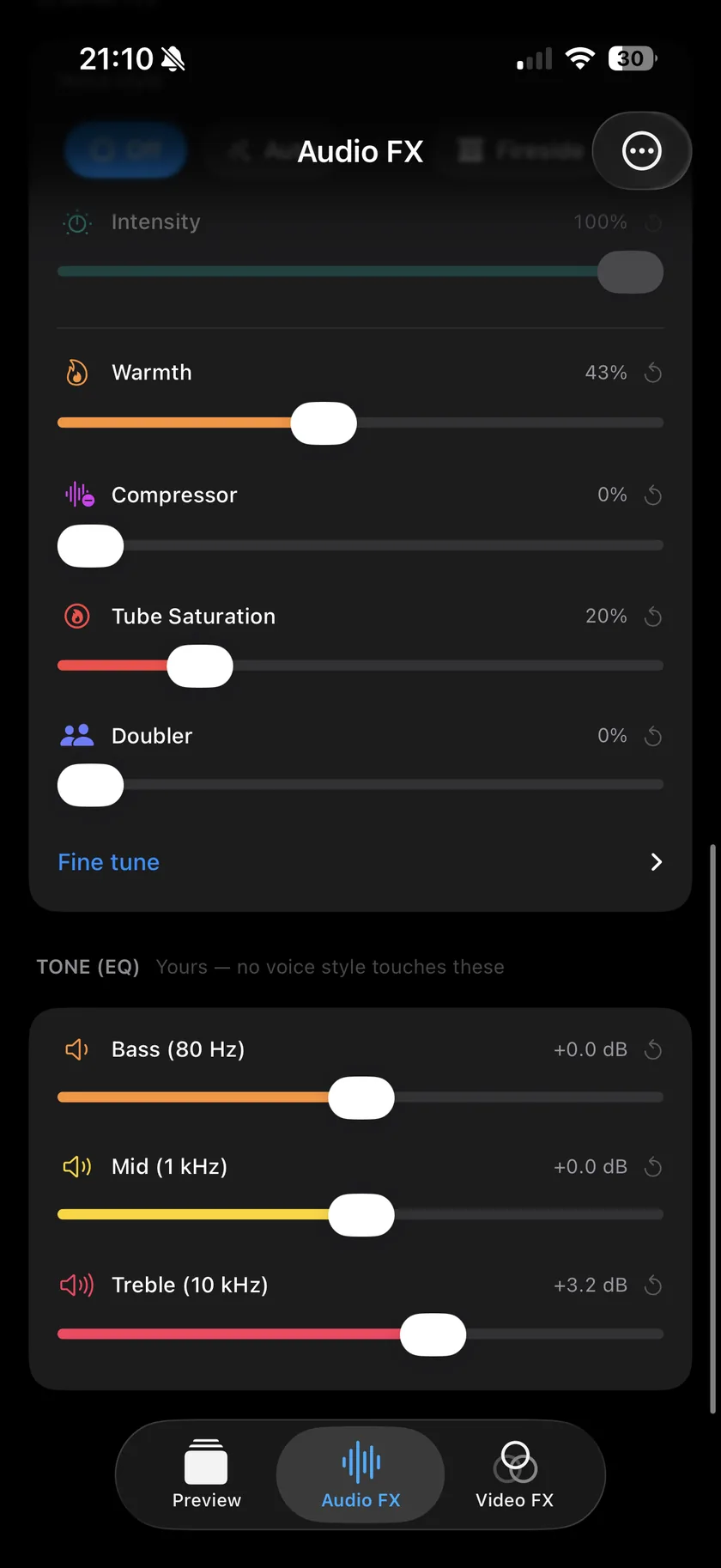
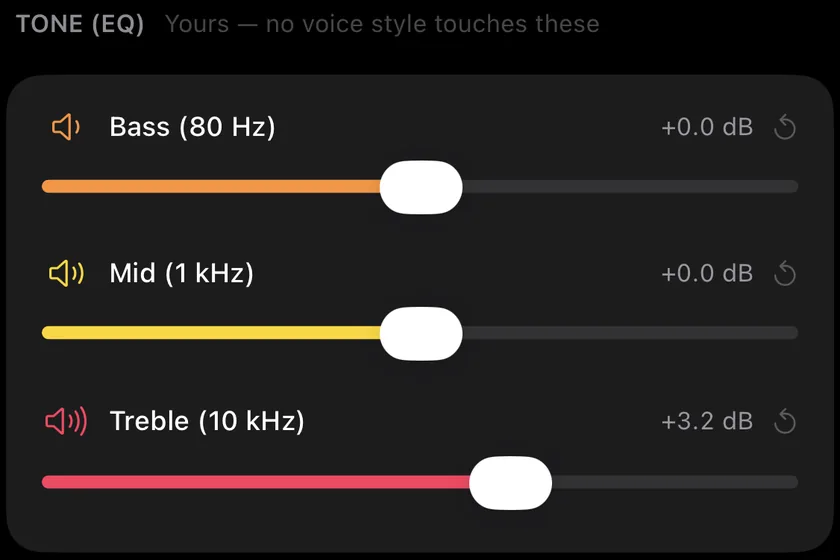
Tap Audio FX in the bar at the bottom and scroll to Tone (EQ). It has three sliders, and a voice style never moves them.
-
Raise Bass
Drag Bass (80 Hz) to the right. It goes from -12 to +12 dB, and the value reads like "+6.0 dB". Start around +4 to +6 dB. +12 dB is the most Videcho gives you, and it is a lot on most clips. The circular arrow sets the slider back to 0 dB.
-
Switch on Prevent clipping
More bass makes the clip louder, and the loudest peaks can crackle. On the Volume card at the top of Audio FX, tap the shield button and switch on Prevent clipping. It is off until you switch it on.
-
Listen to the loudest part
Play the part with the most low end, such as a kick drum or a bass line. If it sounds boomy, muddy or crackly, lower Bass (80 Hz) by a few dB or pull Volume back a little. Check with headphones as well: a phone speaker plays very little at 80 Hz, so the boost shows best on headphones or a speaker with real bass.
-
Keep the voice clear
A lot of bass can cover a voice. If the words get lost, raise Treble (10 kHz) a little or lower Mid (1 kHz) by a dB or two. The EQ guide covers all three bands.
-
Boost only a part
To get the bass only in the drop or the chorus, play to that point, tap the diamond button next to the waveform and raise Bass (80 Hz). Add a second keyframe where it should end and set the bass back. The EQ changes with a short fade at each keyframe.
-
Set the final level
If the clip is now quiet or too loud overall, open the Mastering tab and pick Natural, Social or Loud. Skip this step if the level already sounds right. The mastering guide goes through the three levels.
-
Export
On the Preview tab, tap the Export button, the arrow out of a box at the top right. Videcho renders a new video at the size and frame rate of your clip, up to 4K at 60 fps, and opens the share sheet. Save the video to Photos or Files, AirDrop it or send it on. The original clip stays as it was.
-
How much bass can I add?
Bass (80 Hz) goes up to +12 dB. It is one band at 80 Hz. Videcho has no separate sub-bass or bass-synth effect, so the boost is the low end the clip already has, made louder.
-
Why does my clip sound distorted after a bass boost?
The boost raises the peaks, and a peak that goes above the maximum level is cut flat, which sounds like crackle. Switch on Prevent clipping on the Volume card, lower Bass (80 Hz), or both.
-
Can I bass boost only part of a video?
Yes, with keyframes. See the step "Boost only a part" above.
-
Will bass boost fix a quiet video?
It makes the low end louder, not the whole clip. To raise the level of everything, drag Volume on Audio FX. The guide to a louder video covers it.
-
Does the bass boost change my original video?
No. Videcho writes a new video and leaves the original where it is.
Videcho boosts the bass of a video on iPhone and iPad with a three-band EQ, and adds reverb, echo and volume. It has no subscription and no account.
- How to EQ the sound of a video on iPhoneGuide
- How to increase the volume of a video on iPhoneGuide
- How to normalize audio and master the loudness of a video on iPhoneGuide
- How to improve the sound of a cover or music video on iPhoneGuide
- Videcho vs VideoVerbCompare
Written for Videcho 2.3.0. Button names are the ones the app shows.