How to make a voice memo louder and add reverb or echo on iPhone
In Voice Memos, share the recording to Videcho. Open Videcho yourself and pick the recording under Shared audio. Raise Volume or add Reverb and Echo Mix on the Audio FX tab, then export. You get an m4a with the effects in it, and the recording in Voice Memos stays as it was.
Videcho is on the App Store for iPhone and iPad. The guide names every button as the app shows it.
You need Videcho on an iPhone or iPad with iOS 26 or later, and a recording in Voice Memos.
-
Share the recording to Videcho
Open Voice Memos and tap the recording. Tap the three dots, then Share, then Videcho. When Videcho says the recording is saved, tap Done. You start in Voice Memos because iOS does not let Videcho look inside that app.
-
Open Videcho and pick the recording
Open Videcho yourself. iOS does not let the share sheet open it for you. Tap Choose from Library, or the + button at the top left of the Preview tab if a clip is open, and pick Shared audio. The newest recording is at the top. Tap it and it opens as a new clip.
-
Make it louder
Open Audio FX and drag Volume to the right. 100% is the original level and the slider ends at 300%. Tap the shield button and switch on Prevent clipping first, so loud peaks do not distort. A boost also raises any hiss in the recording.
-
Add reverb
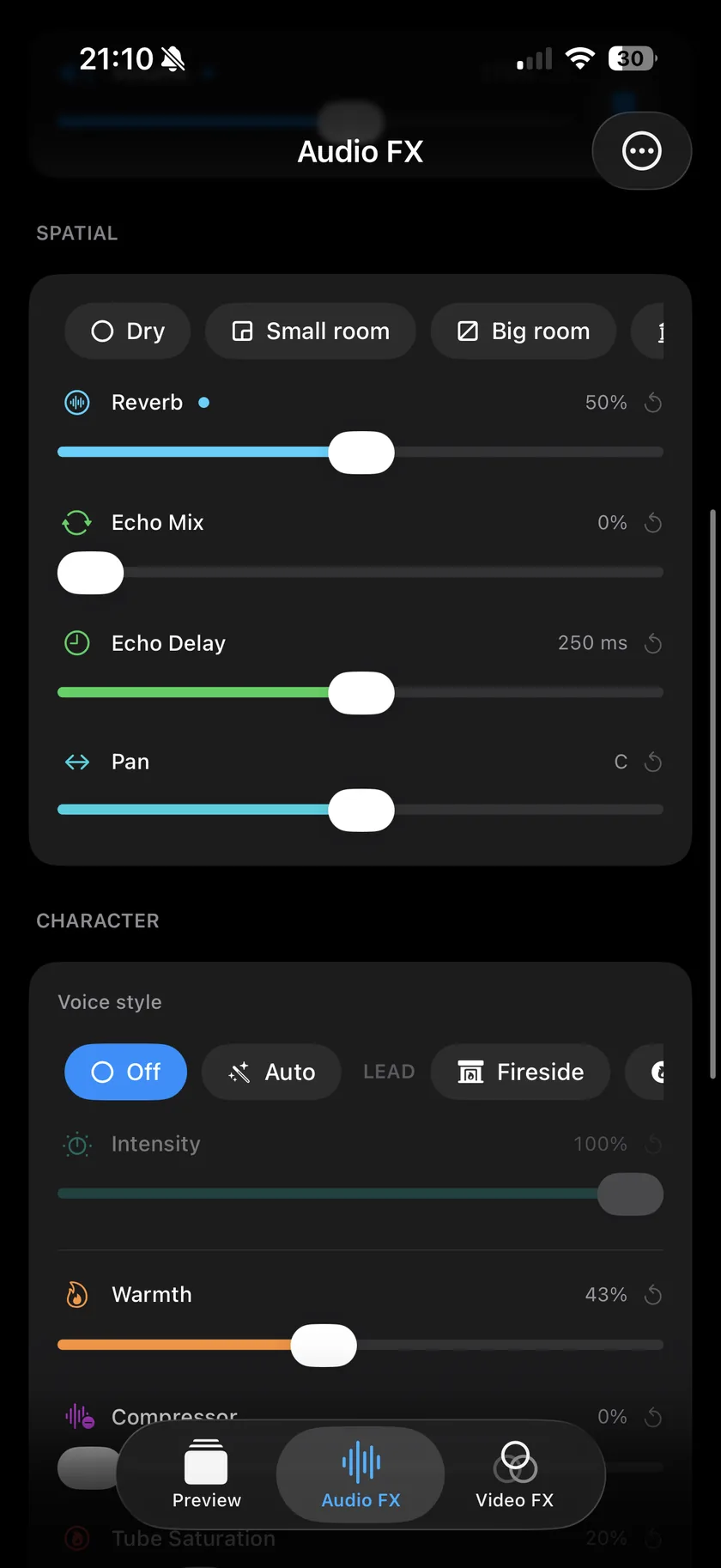
Scroll to the Spatial card and pick a room from the row of presets, then drag Reverb to set the amount. Room, Hall and Large hall are three different rooms. Room is short and close and rings for about half a second, Hall is a concert hall that rings for about two seconds, and Large hall rings for about three seconds, for slow songs. A small amount suits speech.
-
Add echo
In the same card, Echo Mix sets how loud the repeats are and Echo Delay sets the time between them, from 0 to 500 ms. Leave Echo Mix at 0% if you want no echo.
-
Master the loudness
To finish, open the Mastering tab and pick Natural, Social or Loud. Skip this step if the level already sounds right.
-
Export
On the Preview tab, tap the Export button, the arrow out of a box at the top right. Videcho writes an m4a audio file with your effects in it and opens the share sheet, where you can save it to Files, AirDrop it or send it on.
-
Why can't Videcho open my voice memos directly?
Voice Memos keeps its recordings inside its own app, and iOS gives other apps no way to browse them. So you send the recording from Voice Memos to Videcho. iOS also does not let the share sheet open Videcho, so the recording waits under Shared audio until you open the app.
-
Why does a recording stay under Shared audio?
So you can open it again as a fresh clip. Swipe it to the left to remove it.
-
Which audio files can Videcho open?
mp3, m4a, wav, aiff and caf. Pick them with Audio from Files. The photo library holds no audio.
-
Why is there no Video FX tab?
Video FX changes the picture, and a sound file has none, so Videcho does not show the tab for a sound clip. Audio FX and Mastering work as they do for a video.
-
Can I export the voice memo as an mp3?
No. Videcho exports a sound clip as an m4a. Messaging apps, Files and AirDrop all take it.
-
Does Videcho change my original recording?
No. Videcho works on its own copy, and the recording in Voice Memos stays as it was.
-
Can I turn the voice memo into a video?
Not in Videcho. A sound clip exports as audio only.
Videcho makes a voice memo louder and adds reverb, echo and EQ on iPhone and iPad. It has no subscription and no account.
- How to make a video louder on iPhoneGuide
- How to add reverb to a video on iPhoneGuide
- How to add an echo effect to a video on iPhoneGuide
- How to set the loudness of a video for TikTok, Instagram and YouTube on iPhoneGuide
- Videcho vs VideoVerbCompare
Written for Videcho 2.2.0. Button names are the ones the app shows.