How to make an MP3 or audio file louder on iPhone
Videcho opens an mp3, m4a, wav, aiff or caf file and makes it louder, but the louder file comes out as an m4a, not as an mp3. Tap Choose from Library, pick Audio from Files, choose the file, drag Volume on the Audio FX tab up to 1000%, listen and export. If you need an mp3 back, Videcho cannot write one.
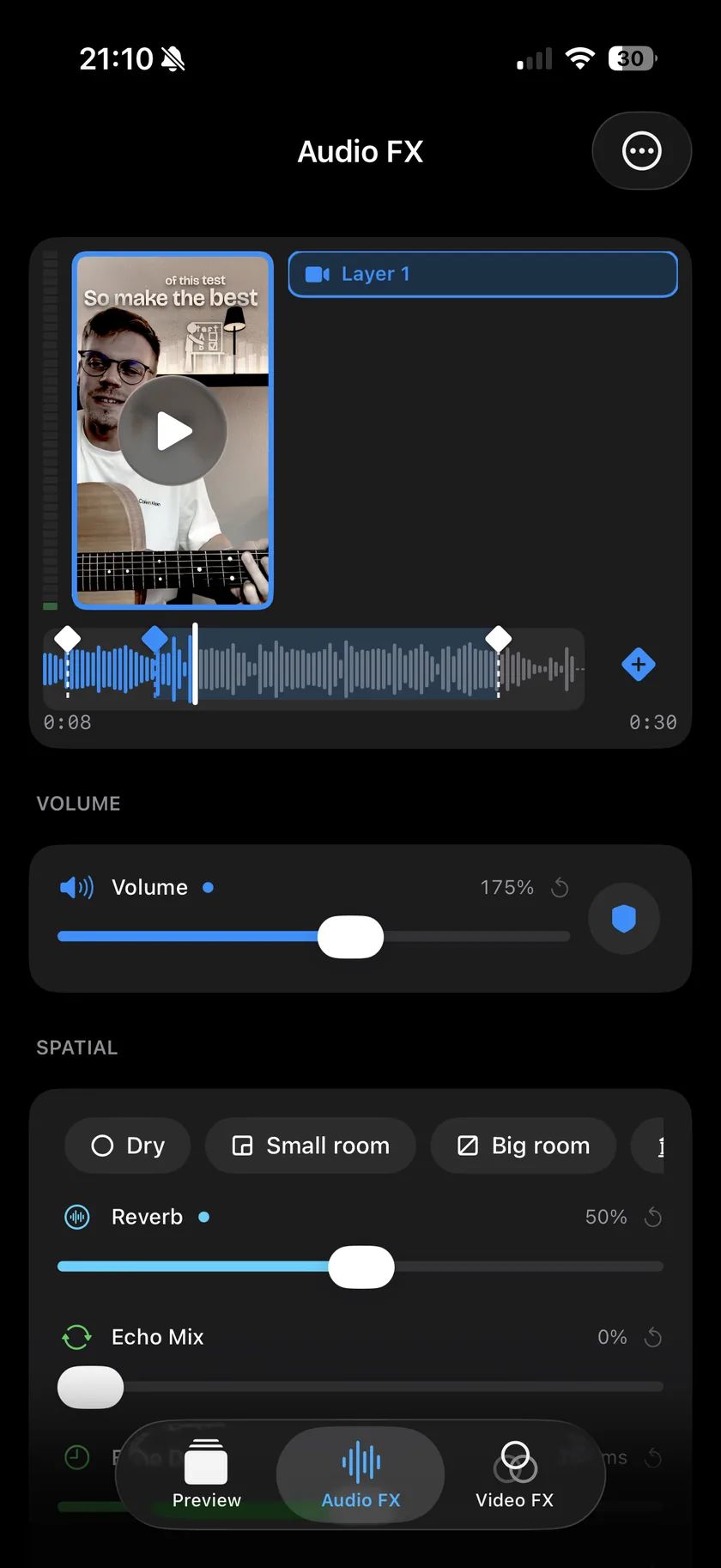
Videcho is on the App Store for iPhone and iPad. The guide names every button as the app shows it.
You need Videcho on an iPhone or iPad with iOS 26 or later, and an audio file in the Files app. An audio file in Voice Memos goes through the share sheet instead.
-
Open the audio file
Open Videcho and tap Choose from Library. Under Audio, tap Audio from Files and choose the mp3, m4a, wav, aiff or caf file. Once a clip is open, the + button at the top left of the Preview tab loads a different one. The photo library holds no audio files, so Files is the way in.
-
Or send the file from another app
If the file sits in an app that offers a share sheet, share it to Videcho. Videcho saves it and says so; tap Done, open Videcho yourself, tap Choose from Library and pick Shared audio. The voice memo guide shows this path step by step.
-
Raise the volume
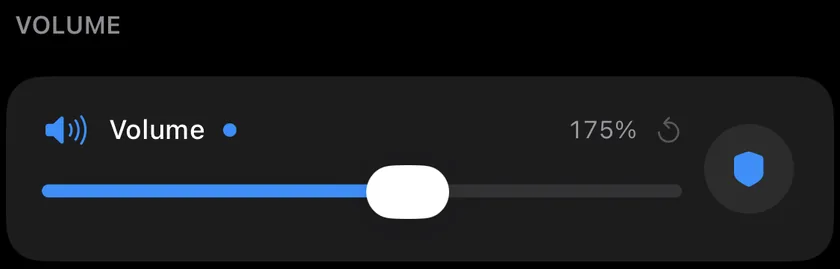
Tap Audio FX in the bar at the bottom and drag Volume to the right. 100% is the original level and the slider ends at 1000%. Above 300% it moves in steps of 50%. The circular arrow sets it back to 100%.
-
Listen to the loudest part
Play the loudest part. If it turns harsh or crackly, pull Volume back a little. A boost raises the hiss of a quiet recording along with the music or the voice.
-
Set the final level
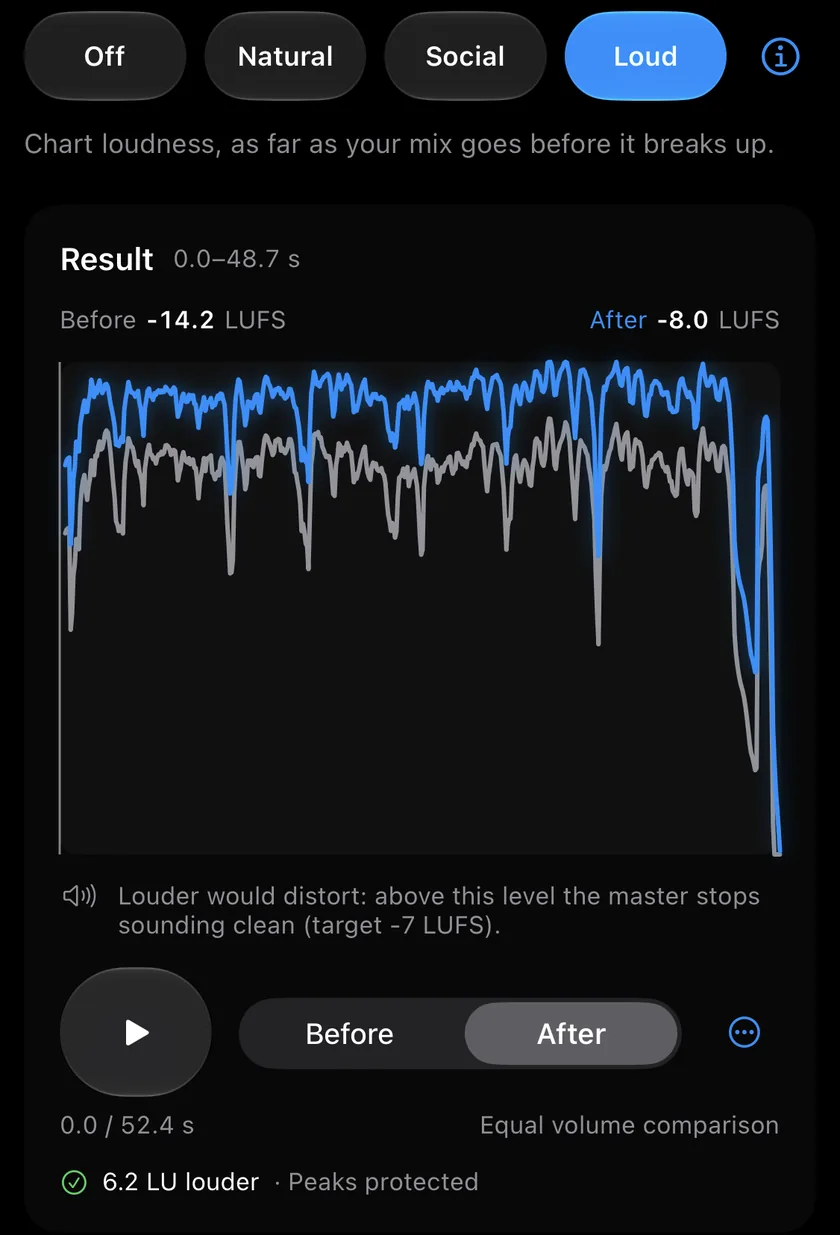
To bring the file to a set loudness instead of judging by ear, open the Mastering tab and pick Natural, Social or Loud. The tab stays for a sound file. Skip this step if the level already sounds right. The mastering guide goes through the three levels.
-
Export the m4a
On the Preview tab, tap the Export button, the arrow out of a box at the top right. Videcho writes an m4a audio file with the new level and opens the share sheet. Save it to Files, AirDrop it or send it on. The original file stays as it was.
-
Can Videcho give me the louder file as an mp3?
No. Videcho exports a sound file as an m4a (AAC). iOS has no MP3 encoder for it to use. Messaging apps, Files, AirDrop and most players take an m4a. If a site or a device accepts only mp3, convert the m4a with another tool afterwards.
-
Which audio files can Videcho open?
mp3, m4a, wav, aiff and caf, picked through Audio from Files.
-
How loud can Videcho make an audio file?
The Volume slider goes up to 1000%, ten times the original level. How much a file can take depends on the recording: a quiet but clean file can take a lot, and a file that is already near full level cannot.
-
Why does my file sound distorted after I made it louder?
A peak that would go above the maximum level is cut flat, and that sounds like crackle. Switch on Prevent clipping with the shield button on the Volume card, lower Volume, or both.
-
Is this a volume booster for my iPhone speaker?
No. Videcho changes the file: it makes the sound in it louder and writes a new one. It does not change how loud your iPhone plays anything else. To turn the whole phone up, use the volume buttons.
-
Does making a file louder lower its quality?
Videcho exports AAC in an m4a, a lossy format like mp3. Keep the original if you need the exact data of a wav or an aiff file.
-
Does Videcho change my original file?
No. Videcho works on its own copy, and the original stays where it is.
Videcho makes an mp3, m4a or other audio file louder on iPhone and iPad, and adds reverb, echo and EQ. It exports an m4a. It has no subscription and no account.
- How to increase the volume of a video on iPhoneGuide
- How to make a voice memo louder and add reverb or echo on iPhoneGuide
- How to normalize audio and master the loudness of a video on iPhoneGuide
- How to EQ the sound of a video on iPhoneGuide
- Videcho vs VideoVerbCompare
Written for Videcho 2.3.0. Button names are the ones the app shows.